
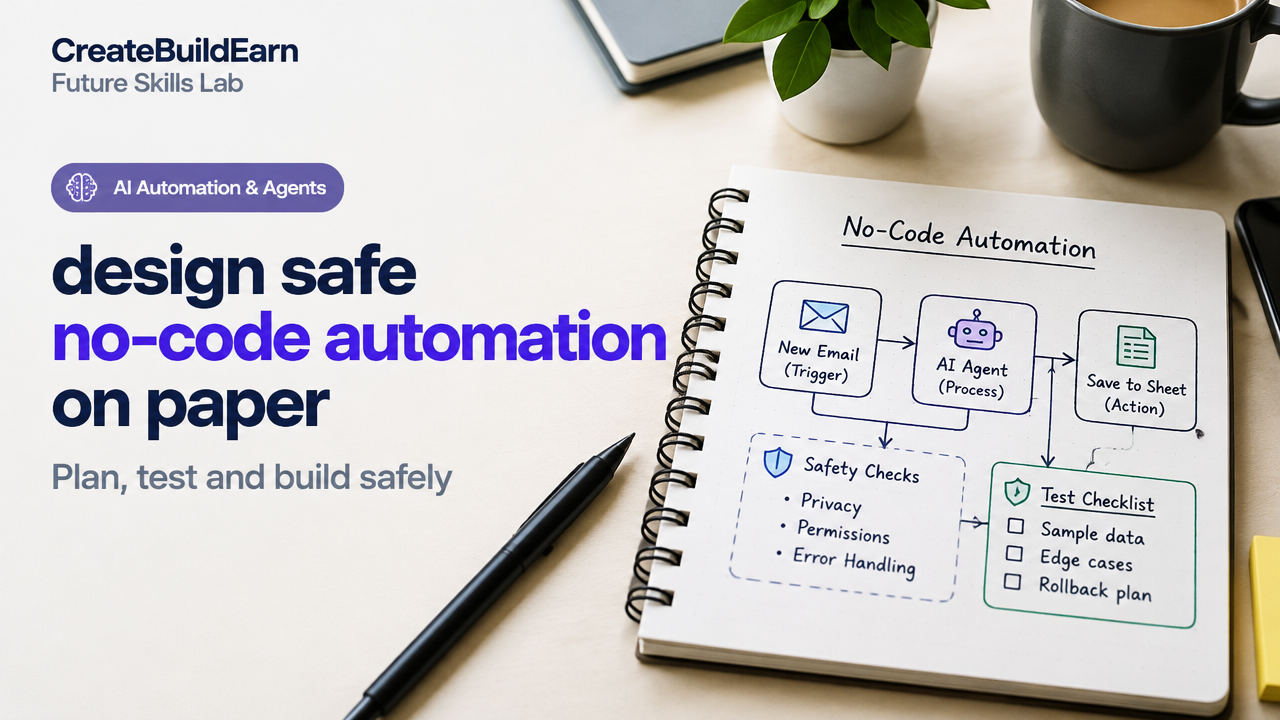
Quick Start
What you will learn/build: How to sketch a safe no-code automation on paper before using any tool. You will create a clear plan, privacy checks, error handling and a test checklist.
Skill level: Beginner — no coding required.
Time needed: 45–90 minutes for a first plan; 15–30 minutes for smaller automations.
What you need: Paper or notebook, pen, smartphone or laptop for reference, and a basic understanding of the apps/services you plan to connect.
Introduction — Why design no-code automation on paper first?
Building automation quickly with no-code tools is exciting, but jumping straight into a platform often leads to surprises: broken flows, exposed data, unhandled errors, and wasted time. Designing on paper before building helps you think clearly about triggers, data, permissions, and safety. It is low-cost, fast, and forces you to consider privacy and verification—essential when automation touches people or sensitive information.
What this guide covers
- How to plan an automation step-by-step on paper.
- Essential safety and privacy checks for no-code tools and AI components.
- A worked example you can copy and adapt.
- A hands-on mini-project to try immediately.
- Checkpoint, common mistakes, review checklist, and next steps.
Prerequisites & safety rules
Before planning, know these simple rules to keep your automations safe and reliable:
- Limit personal data: avoid collecting or moving PII unless needed and authorised.
- Follow app terms: verify automation actions are allowed by each service.
- Use least privilege: only grant the permissions required (read vs write).
- Plan for failure: design how the system behaves when something goes wrong.
- Test on sample data or staging accounts first—not real users or live data.
Useful internal reading: What Is AI Automation? A Beginner Guide and AI Automation Explained With Simple Workflows.
Step-by-step paper planner (follow these layers)
Use layers on paper. Each layer answers a class of questions. Draw boxes and arrows. Keep it clear.
- Goal layer: What problem are you solving? Who benefits?
- Trigger layer: What starts the automation? (event, time, manual)
- Data layer: What data moves? Where does it come from? Is any data sensitive?
- Action layer: What actions happen and in what order?
- Decision layer: Any branching rules? Conditions and thresholds?
- Error & audit layer: What errors are possible and how are they handled? Who is notified?
- Privacy & compliance layer: Consent, retention, and allowed use.
| Planner Row | What to draw/write | Questions to answer |
|---|---|---|
| Goal | Short one-line objective | Why? Who benefits? Success metric? |
| Trigger | Trigger box with source and condition | When exactly should it start? Manual or automatic? |
| Data | List fields and sample values | Is any field PII? Is it encrypted? |
| Actions | Sequence of action boxes | What app does each action use? What permission needed? |
| Error plan | Failure paths and notifications | Who should be alerted? Retry rules? |
| Test plan | Test cases and expected outcomes | How to verify success and safety? |
Worked example: Auto-save incoming invoice PDFs and notify a reviewer
Sketch this example on paper before building it in a no-code platform.
1. Goal: Save invoice PDFs from email to a secure cloud folder and notify the finance reviewer.
2. Trigger: New email with subject containing “Invoice” and an attachment PDF.
3. Data: Email sender, subject, date, attachment filename, file content (PDF). Mark file content as sensitive: contains payment info.
4. Actions (sequence):
- Download PDF attachment to a secure cloud folder named “Invoices/Incoming”.
- Rename file to “YYYYMMDD_sender_invoice.pdf” and set access to finance group only.
- Create a task in the finance reviewer app with a secure link and short summary (no PII in summary).
- Send a notification to reviewer (email or chat) that links to the task, not the raw file.
5. Decision rules: If the sender email is not on an approved vendor list, send the item to a manual review queue rather than auto-saving.
6. Error handling: If file download fails, retry 2 times, then notify the system admin with error details (do not include file content in the email).
7. Privacy & permissions: Only finance group has folder access. Retention policy: move files older than 2 years to archived storage (verify legal rules in your organisation).
Test plan & safety checklist
Write test cases on paper. Example test cases for the invoice flow:
- Valid invoice email from approved vendor → file saved, task created, reviewer notified.
- Invoice email from unknown sender → moved to manual review queue.
- Email with non-PDF attachment → rejected and logged for manual check.
- Attachment download fails → retries then admin notified; no file left in insecure state.
| Test | Expected result |
|---|---|
| Approved vendor | Saved + task + notification |
| Unknown vendor | Manual review |
| Corrupt file | Retry then admin alert |
Try It Now / Mini Project
Mini-project: On paper, design a safe automation that copies new job applications from an email inbox to a team folder and adds a review task.
- Goal: Describe in one sentence.
- Trigger: Define the exact email subject or label that starts the flow.
- Data: List exactly what fields you will capture. Mark any PII and decide how to handle it.
- Actions: Draw steps, including where files are stored and who can access them.
- Error plan: Add 2 failure scenarios and how to respond.
- Test: Write 3 test cases and expected results.
Time yourself: 20–40 minutes. After finishing, compare with the review checklist below.
Checkpoint — Self-review questions
Use these quick checks to confirm your paper design is ready to build.
- Is the goal clear and measurable?
- Are triggers and conditions unambiguous?
- Have you identified sensitive data and limited its exposure?
- Is there a clear permissions plan for storage and apps?
- Do you have test cases that include failures?
- Is there a rollback or manual review path for unexpected cases?
Common mistakes and how to avoid them
- Skipping privacy checks: Always mark PII and ask whether each field must be moved or stored.
- Assuming defaults are safe: No-code tools may set broad permissions by default—explicitly tighten them in your plan.
- No error handling: Plan retries, notifications, and manual review paths on paper first.
- Too-complex flows: Break large automations into smaller, tested modules.
- Testing on live data: Use sample data or staging accounts where possible.
Review checklist (print or copy to your notebook)
| Item | Yes / No |
|---|---|
| Clear one-line goal | |
| Defined trigger and conditions | |
| Data fields listed and sensitivity marked | |
| Action sequence drawn | |
| Error & retry plan included | |
| Permission and privacy checks done | |
| Test cases written (including failures) |
Next practice: building and safe verification
After your paper plan is complete, next steps are:
- Choose a no-code platform that supports your apps and least-privilege permissions.
- Use test/staging accounts and implement the flow as two or three small modules.
- Run your paper test cases. Log results and refine the plan if needed.
Related reading to help you build: How to Write AI Prompts (if your flow uses AI), and 7 Powerful Steps to Build an AI Study Assistant Project for project planning tips.
Frequently Asked Questions
Why draw automation on paper instead of starting in the no-code tool?
Paper forces you to think logically, spot privacy issues, and design error handling before committing time in a tool. It reduces rework and uncovers permission or data-flow problems early.
How do I mark sensitive data in my paper plan?
Write a red border (or highlight) around fields that are PII or financial. Note where that data will be stored, who can access it, and how long it will be retained. If you share the plan, remove sample sensitive values.
Can I include AI steps in the paper plan safely?
Yes. Describe what the AI will do (summarise, classify, extract) and list inputs and outputs. Add a verification step so a human checks outputs before any action that affects users. See our guide What Is AI Automation? for basics.
What should I test first when I move from paper to tool?
Test the trigger and the first action with a safe sample. Verify permission scopes and that no unintended data is exposed. Then test failure scenarios and notifications.
How do I handle unknown or unexpected inputs?
Include a decision branch that routes unexpected inputs to a manual review queue. Log the full event (without sensitive content) and notify a human reviewer with instructions.
Which permissions should I avoid granting to third-party connectors?
Avoid broad ‘full account’ or ‘admin’ permissions. Prefer scope-limited access (read-only, specific folder access). If a tool requires broad permissions, consider an alternative or isolate the function in a service account.
Is it OK to share my paper design with teammates?
Yes, but remove any real PII from the plan. Share sample or masked data. Use the plan to get feedback on flows, edge cases, and policies.
Conclusion — The next skill to learn
Designing safe no-code automation on paper is a habit that will save time and prevent errors. After you finish this practice, the next useful skill is building and testing in a no-code tool while keeping safety checks in place. A good follow-up is learning how to write clear AI prompts and verification steps: How to Write AI Prompts.
Use the paper plan to guide each build, and always test with sample data and least-privilege permissions. Safe planning makes automations reliable, respectful of privacy, and easier to maintain.
Learn it by building something
Use the guide as a learning checklist, build a small version yourself, test it, explain what you learned and then improve the project.
How this guide was prepared
This guide is prepared for everyday readers using practical research, usability checks and editorial review. Product or tool-specific claims should be verified against current official documentation when needed.
How did you like this article?
Your feedback helps us make our guides more useful.


Join the Discussion
Join the conversation and share a useful tip, question or experience.